
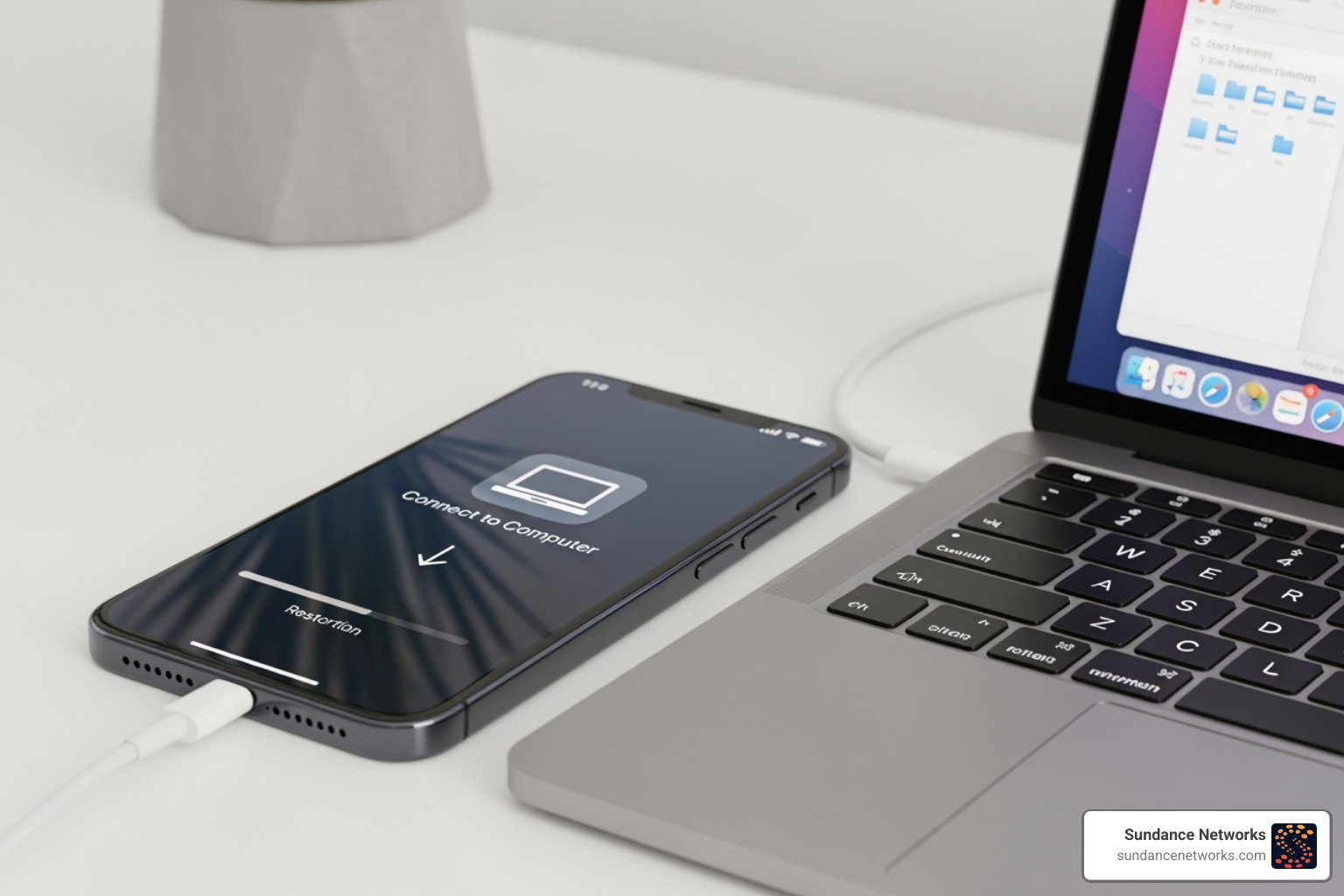
If you need to restore old backup data to your iPhone, the process depends on where the backup is stored. You can restore from iCloud during the initial device setup or from a computer using Finder or iTunes. Both methods transfer your contacts, messages, photos, app data, and settings.
Quick Restore Methods:
- iCloud Restore: Turn on device → Tap “Restore from iCloud Backup” → Sign in → Choose backup → Wait for download
- Computer Restore: Connect device → Open Finder/iTunes → Select device → Click “Restore Backup” → Choose backup file → Enter password if encrypted
Whether you’re setting up a new iPhone or recovering from a factory reset, a backup restores everything that makes your device yours. The main challenge is choosing the right method. iCloud backups are convenient but limited by storage space (5GB free), while computer backups offer more control but require physical access to the machine.
Without a backup, you risk permanent data loss if your device is lost, stolen, or damaged. Regular backups are essential, especially in business environments where data loss equals lost productivity.
I’m Ryan Miller, founder of Sundance Networks, with over 17 years in information systems and a decade specializing in information security. I’ve helped countless clients restore old backup data and implement robust backup strategies. This guide will walk you through recovering your iOS data from iCloud or your computer.
Preparing for Your iOS Data Restore
Before you restore old backup data, a few preparation steps will ensure a smooth process. You’ll need to know what’s in your backup, where it’s located, and have the right credentials ready.
Your backups are stored either in Apple’s cloud, tied to your Apple ID credentials, or locally on your Mac or PC. Restoring from iCloud requires a stable Wi-Fi connection, as you could be downloading gigabytes of data.
If your iPhone is already set up, you must erase it to begin the restore process. Go to Settings > General > Transfer or Reset iPhone > Erase All Content and Settings. This returns your device to the initial “Hello” screen, where the restore options appear. For businesses, understanding these steps is part of a sound Data Protection Strategies approach.
What’s Included in an iPhone Backup?
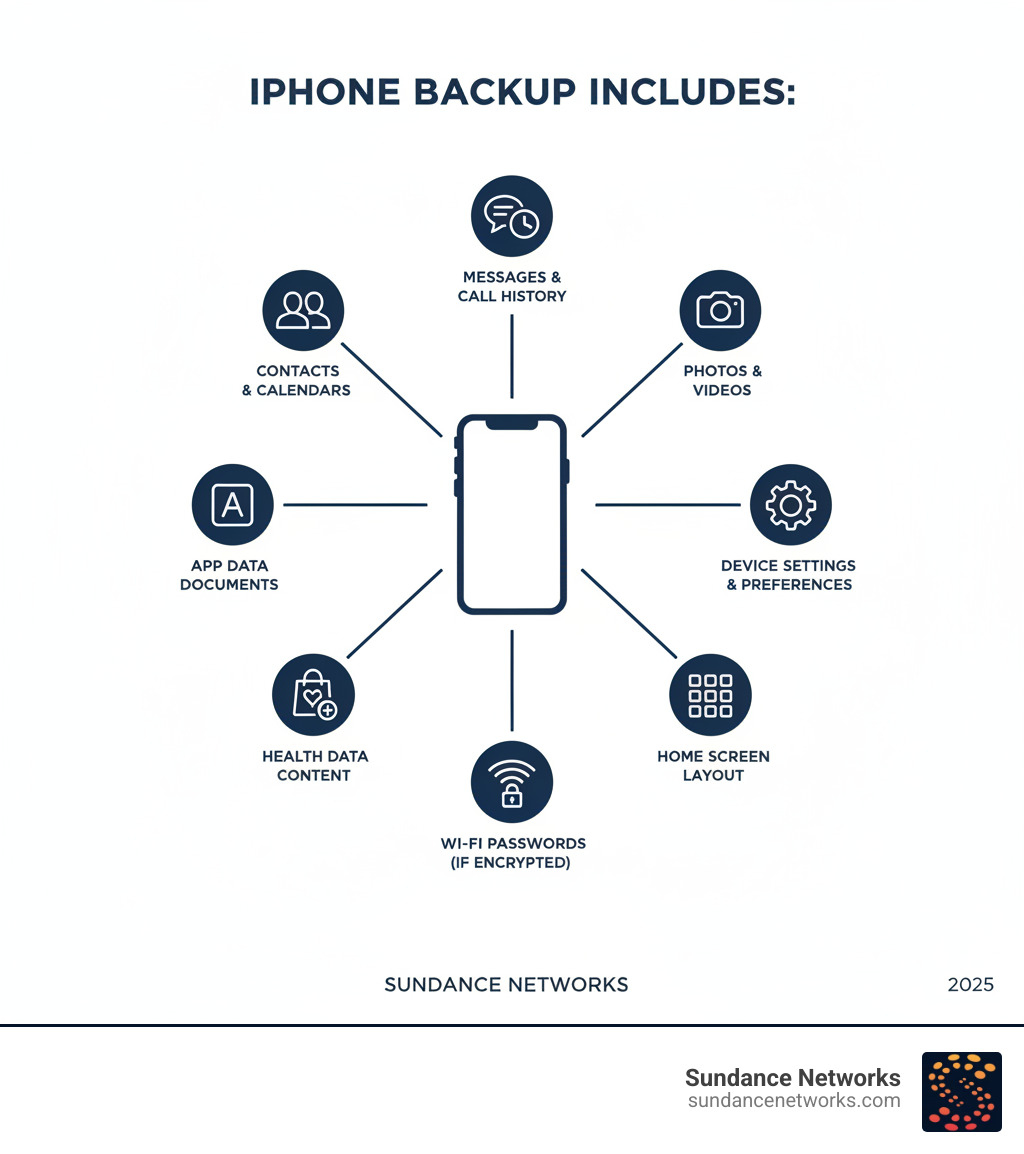
An iPhone backup is a comprehensive snapshot of your device, but it doesn’t copy everything. Here’s what’s included:
- Contacts, Calendars, and Messages: All your contacts, appointments, and iMessage/SMS/MMS history.
- Camera Roll: Photos and videos you’ve taken.
- App Data: Game progress, documents, and settings for your apps. The apps themselves are re-downloaded from the App Store.
- Device Settings & Layout: Your wallpaper, network settings, and home screen organization.
- Encrypted Data: If you use an encrypted backup, sensitive information like Health data and saved passwords in your iCloud Keychain are included. This data is excluded from unencrypted backups for security.
- Purchase History: The backup remembers your App Store and iTunes purchases, which will be available to re-download.
Content already synced with iCloud, like iCloud Photos, is typically not included in the backup to save space.
Prerequisites Before You Begin
Gather these essentials before you start to avoid interruptions.
- Stable Wi-Fi Connection: Crucial for iCloud restores. A weak connection can cause the process to fail or take hours.
- Apple ID and Password: You’ll need this to access your iCloud backup and re-download purchased content.
- Fully Charged Device: A restore can be lengthy. Keep your iPhone plugged into a power source to prevent the battery from dying mid-process.
- Erased Device: To restore a backup, the iPhone must be at the “Hello” setup screen. If it’s already in use, go to Settings > General > Transfer or Reset iPhone > Erase All Content and Settings.
- Updated Computer: For computer-based restores, ensure your Mac or PC is updated. Macs on macOS Catalina (10.15) or newer use Finder, while older Macs and Windows PCs use iTunes. This preparation is a key part of professional IT Consulting & Support.
Step-by-Step Guide: How to Restore an Old Backup
Let’s get your data back. Whether your backup is in iCloud or on your computer, follow the appropriate method below to restore old backup data to your iPhone.
Method 1: Restore an Old Backup from iCloud
This method is ideal for setting up a new iPhone or after a factory reset, as it doesn’t require a computer.
- Start Fresh: Turn on your iPhone to the “Hello” screen. If your device is already set up, you must first erase it by going to Settings > General > Transfer or Reset iPhone > Erase All Content and Settings.
- Follow Setup Prompts: Select your language and region, then connect to a stable Wi-Fi network. This connection is critical for the download.
- Choose Restore Option: Continue through the setup screens until you reach the “Apps & Data” screen. Tap “Restore from iCloud Backup.”
- Sign In and Select Backup: Enter your Apple ID and password. You’ll see a list of available backups with their date and size. Carefully choose the one you want to restore.
- Wait for the Restore: The download will begin. A progress bar will show its status, which can take anywhere from a few minutes to several hours depending on the backup size and your Wi-Fi speed. Keep your device plugged in and connected to Wi-Fi.
- Complete Setup: After the initial restore finishes, your iPhone will restart. Content like apps and photos will continue downloading in the background. Keep your device connected to Wi-Fi to allow this process to complete. This cloud-based accessibility is a core benefit explored in Cloud Solutions.
Method 2: Restore an Old Backup from Your Computer (Mac/PC)
A wired connection is often faster and more reliable for large backups. The process uses Finder on modern Macs and iTunes on older systems and PCs.
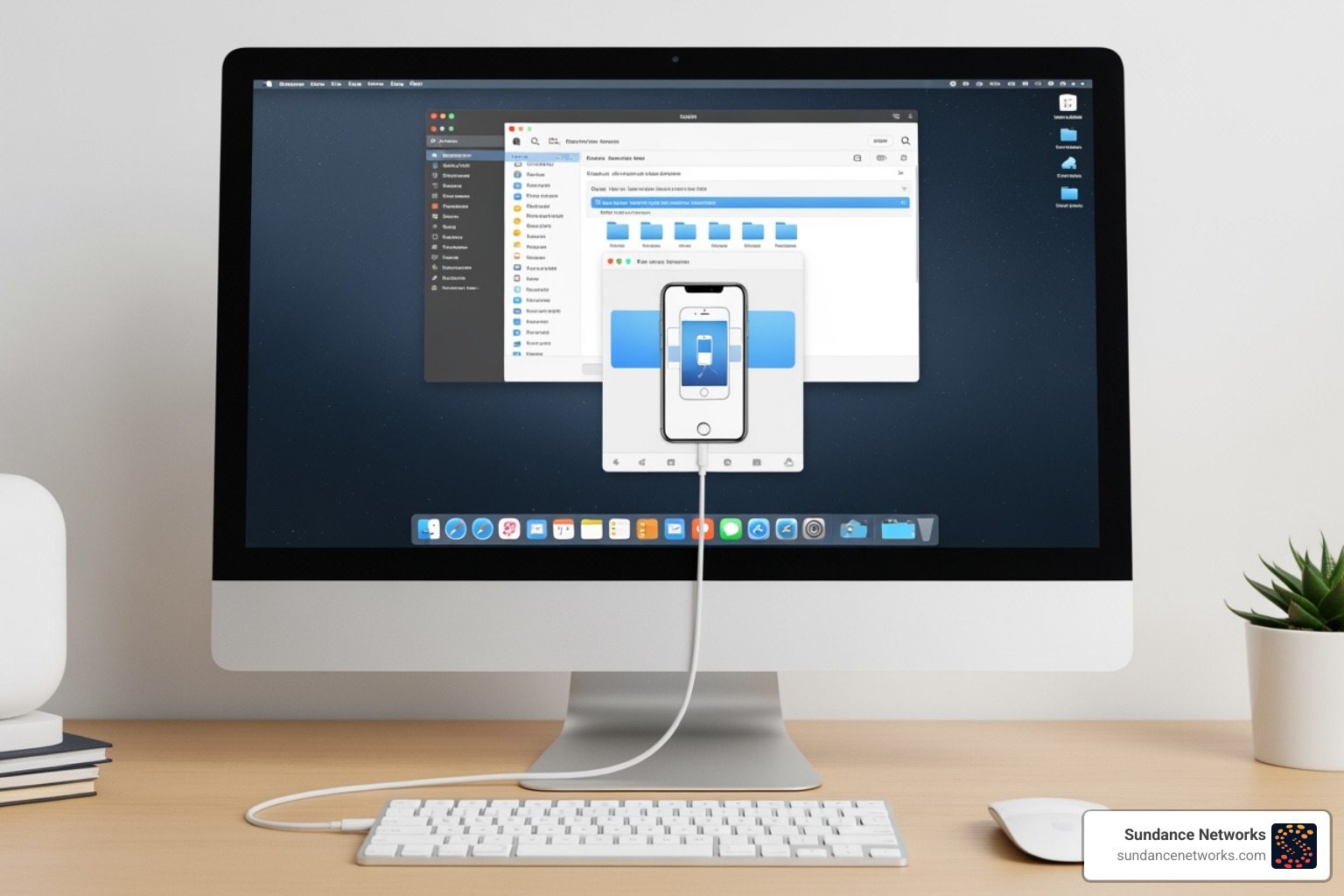
- Connect Your Device: Use a USB cable to connect your iPhone to the computer that holds the backup.
- Open the Right Application: On a Mac with macOS Catalina (10.15) or later, open Finder and select your iPhone in the sidebar. On a Mac with macOS Mojave (10.14) or earlier or a Windows PC, open iTunes and click the iPhone icon.
- Trust the Computer: If prompted on your iPhone, tap “Trust” and enter your device passcode to establish a secure connection.
- Locate the Restore Button: In Finder, steer to the “General” tab. In iTunes, go to the “Summary” tab. Click the “Restore Backup” button.
- Choose Your Backup: A dialog box will show a list of backups on the computer. Select the correct one based on the date and device name.
- Enter Password (If Encrypted): If you created an encrypted backup, you must enter the password you set for it. This password is not recoverable if forgotten.
- Wait for Completion: Click “Restore” and keep your iPhone connected to the computer until the entire process, including any final syncing, is complete. Do not unplug the device or close the application prematurely.
Key Differences and Troubleshooting
Understanding the differences between iCloud and computer backups, along with how to handle common issues, is key to a successful restore. When you need to restore old backup data, knowing these details can save you significant time and frustration.
Many users employ both methods: automatic iCloud backups for daily convenience and periodic computer backups for a robust, locally-controlled safety net. For businesses, this decision is even more critical, as explored in our On-Premise or Cloud? analysis.
iCloud vs. Computer Backups
- Storage & Accessibility: iCloud backups are stored on Apple’s servers and are accessible from anywhere with Wi-Fi. Computer backups are stored on your local hard drive and require physical access to that machine.
- Speed: iCloud restore speed depends on your internet connection. Computer restores are generally faster, relying on a direct USB connection.
- Security: iCloud backups are automatically encrypted by Apple. Computer backups are only encrypted if you manually select the “Encrypt local backup” option. An unencrypted local backup is vulnerable if your computer is compromised.
- Cost: iCloud provides 5 GB of free storage, with paid plans for more space. Computer backups are free, limited only by your hard drive’s capacity.
- Control: iCloud backups are automatic and convenient. Computer backups offer full control over when and where the backup is stored but require manual initiation.
Common Issues and How to Fix Them
Even with careful preparation, problems can arise. Here’s how to fix the most common ones.
- Restore Failures or Interruptions: This is often caused by an unstable Wi-Fi connection, a faulty cable, or low battery. Fix: Ensure a strong Wi-Fi signal, keep the device plugged in, use a reliable cable, and restart the process.
- Insufficient Storage Errors: This occurs if the backup is larger than the available space on your iPhone. Fix: You cannot selectively restore parts of a backup. Your only options are to restore a smaller, older backup or delete content after the restore is complete to free up space.
- Forgotten Encrypted Backup Password: If you forget the password for an encrypted computer backup, the data is inaccessible. Fix: There is no recovery method for a lost encrypted backup password. You must use a different backup or start fresh.
- Corrupt or Incompatible Backups: A backup file can become damaged or be from a newer iOS version than the device you’re restoring to. Fix: Try an older backup file if available. If the issue is a software mismatch, update your iPhone to the latest iOS version before attempting the restore again.
- Software Version Mismatches: You cannot restore a backup from a newer iOS version (e.g., iOS 17) onto a device running an older version (e.g., iOS 16). Fix: Always update the target iPhone to the latest available iOS before starting the restore.
If you’re still stuck, you can Get suggestions from Apple Support. For businesses, failed data recovery can halt operations, making professional Cyber Security and IT support essential.
Frequently Asked Questions about Restoring Backups
Here are answers to some of the most common questions people have when they need to restore old backup data.
How long does it take to restore an iPhone?
There’s no single answer. Restore time depends on several factors:
- Backup Size: Larger backups with many photos and videos take longer.
- Internet Speed: For iCloud restores, a fast Wi-Fi connection is crucial. A slow connection can extend the process for hours.
- Computer Speed: For local restores, a faster computer and USB connection will speed things up.
Even after the initial restore completes, content like apps and photos will continue downloading in the background for hours or even days. It’s best to start the process when you don’t need your phone immediately, keeping it plugged in and connected to Wi-Fi.
Can I restore a backup to a different iPhone model?
Yes, this is a very common use case, especially when upgrading. You can restore old backup data from an older model to a newer one (e.g., from an iPhone 11 to an iPhone 15) without issue.
However, you generally cannot restore a backup from a device running a newer iOS version to one running an older version. For example, an iOS 17 backup won’t restore to a phone on iOS 16. The solution is to update the target device’s software to the latest version before attempting the restore.
Also, ensure the new iPhone has enough storage capacity for the backup.
What happens if I never back up my iPhone?
Skipping backups is a significant risk. The consequences include:
- Permanent Data Loss: If your iPhone is lost, stolen, or suffers a critical failure, all your data—photos, contacts, messages—is gone forever. There is no way to recover it without a backup.
- Difficult Device Migration: When you get a new phone, you’ll have to manually set it up from scratch, losing app data, settings, and conversation histories.
- Lost Productivity: For professionals, losing client communications, project data, or business contacts stored on a phone can lead to significant downtime and financial loss.
A reliable Data Recovery & Backup Services plan is essential for protecting your digital life. Set up automatic backups today to protect your valuable information.
Secure Your Data and Get Expert Help
You now have the knowledge to restore old backup data from iCloud or your computer. This process highlights a critical point: regular backups are essential insurance for your digital life.
While the methods in this guide cover most personal use cases, some situations require professional expertise. Complex issues like a corrupted backup, managing backups for dozens of business devices, or persistent errors can halt recovery efforts. For a business, data recovery isn’t just about convenience—it’s about maintaining operations and protecting sensitive information.
At Sundance Networks, we help businesses protect their most valuable asset: their data. Our Data Recovery & Backup Services go beyond basic iPhone support. We design resilient, custom backup protocols and troubleshoot complex restore issues to minimize the risk of catastrophic data loss. The right strategy turns a potential crisis into a minor inconvenience.
We empower businesses with smart technology and robust security. Don’t wait for a disaster to think about data protection. If you need to implement a comprehensive backup strategy or are facing a challenging restore, we’re here to help.